> ## Documentation Index
> Fetch the complete documentation index at: https://docs.rightnowai.co/llms.txt
> Use this file to discover all available pages before exploring further.
# GPU Emulation
> Test CUDA code on different GPUs without owning the hardware.
# GPU Emulation
Test your CUDA kernels on any GPU without physical hardware.
## Quick Start
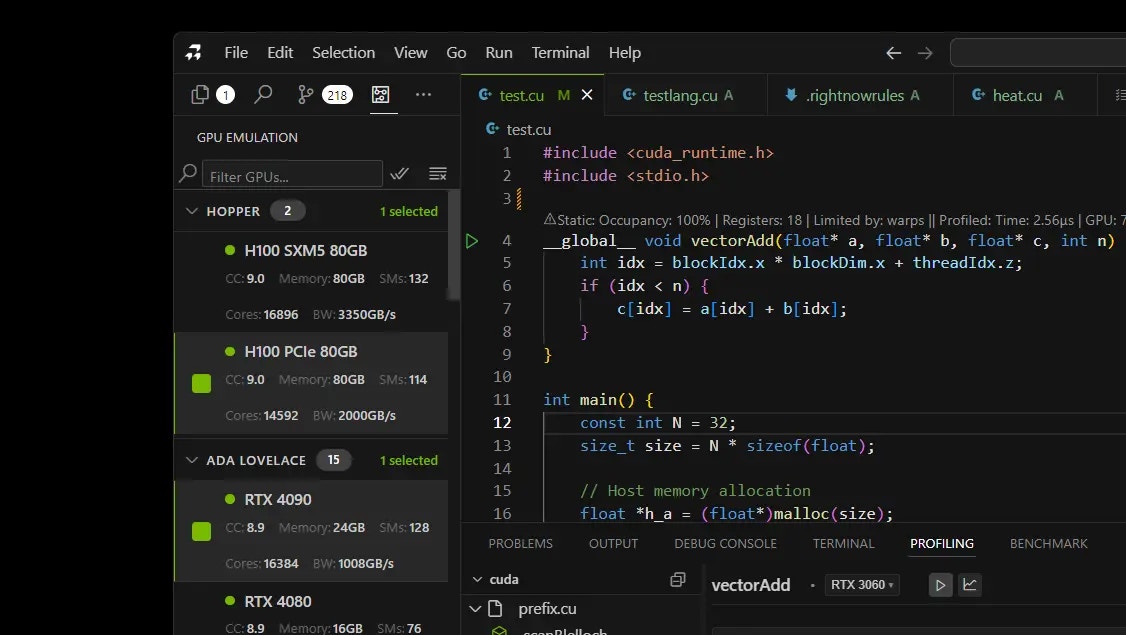 Click the GPU Emulation icon in the sidebar (circuit board icon).
Select the GPU you want to test from the list. Click the checkbox next to it.
Open your .cu file and click the Build button. Your code runs on the selected GPU.
## Available GPUs
The emulator includes all major NVIDIA GPUs:
* **Latest**: H100, H200, RTX 4090
* **Data Center**: A100, V100
* **Gaming**: RTX 3090, RTX 2080 Ti
* **Older**: GTX 1080, Tesla K80
## How to Select GPUs
Click the GPU Emulation icon in the sidebar (circuit board icon).
Select the GPU you want to test from the list. Click the checkbox next to it.
Open your .cu file and click the Build button. Your code runs on the selected GPU.
## Available GPUs
The emulator includes all major NVIDIA GPUs:
* **Latest**: H100, H200, RTX 4090
* **Data Center**: A100, V100
* **Gaming**: RTX 3090, RTX 2080 Ti
* **Older**: GTX 1080, Tesla K80
## How to Select GPUs
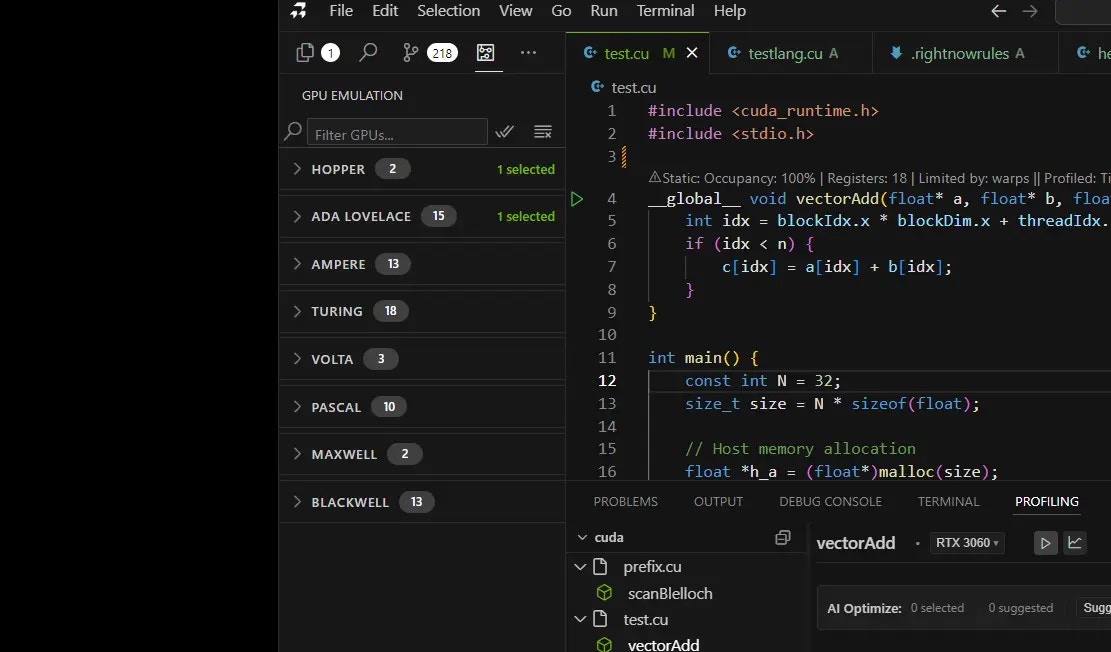 1. **Single GPU**: Check one box to test on that GPU
2. **Multiple GPUs**: Check multiple boxes to compare performance
3. **Search**: Type GPU name in search box to find it quickly
4. **Clear**: Click "Clear Selection" to deselect all
## What You'll See
1. **Single GPU**: Check one box to test on that GPU
2. **Multiple GPUs**: Check multiple boxes to compare performance
3. **Search**: Type GPU name in search box to find it quickly
4. **Clear**: Click "Clear Selection" to deselect all
## What You'll See
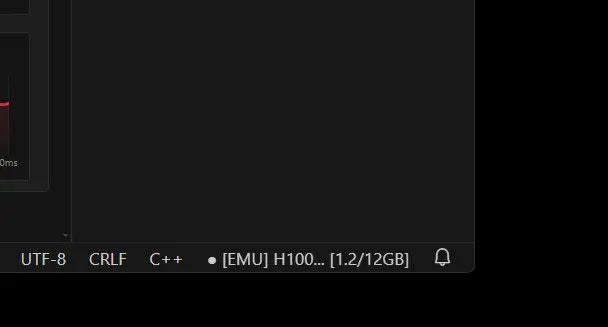 When emulation is active:
* Status bar shows the selected GPU name
* "Emulation Active" indicator appears
* Performance results show estimated metrics
## Tips
**Best Uses**
* Test code compatibility on different GPUs
* Develop without expensive hardware
* Compare performance across architectures
* Learn CUDA on any computer
**Remember**
Emulation provides estimates. For production benchmarks, use real hardware.
## Screenshots Needed
1. GPU Emulation panel open in sidebar
2. GPU selection with checkboxes
3. Status bar showing active emulation
## Next Steps
* [Remote GPU Execution](/remote-gpu-execution) - Connect to real remote GPUs
* [Benchmarking](/benchmarking) - Measure performance
* [Core Features](/core-features) - AI assistance
When emulation is active:
* Status bar shows the selected GPU name
* "Emulation Active" indicator appears
* Performance results show estimated metrics
## Tips
**Best Uses**
* Test code compatibility on different GPUs
* Develop without expensive hardware
* Compare performance across architectures
* Learn CUDA on any computer
**Remember**
Emulation provides estimates. For production benchmarks, use real hardware.
## Screenshots Needed
1. GPU Emulation panel open in sidebar
2. GPU selection with checkboxes
3. Status bar showing active emulation
## Next Steps
* [Remote GPU Execution](/remote-gpu-execution) - Connect to real remote GPUs
* [Benchmarking](/benchmarking) - Measure performance
* [Core Features](/core-features) - AI assistance