> ## Documentation Index
> Fetch the complete documentation index at: https://docs.rightnowai.co/llms.txt
> Use this file to discover all available pages before exploring further.
# Benchmarking
> Measure and compare CUDA kernel performance.
# Benchmarking
Test your CUDA kernel performance and compare different implementations.
## Quick Start
Click "Benchmark" in the bottom panel or use command palette: "CUDA: Open Benchmark View".
Set iterations, warmup runs, and data sizes in the configuration view.
Click "Run Benchmark" button and watch results appear in real-time.
Select two benchmarked kernels to see side-by-side performance comparison.
## How to Use
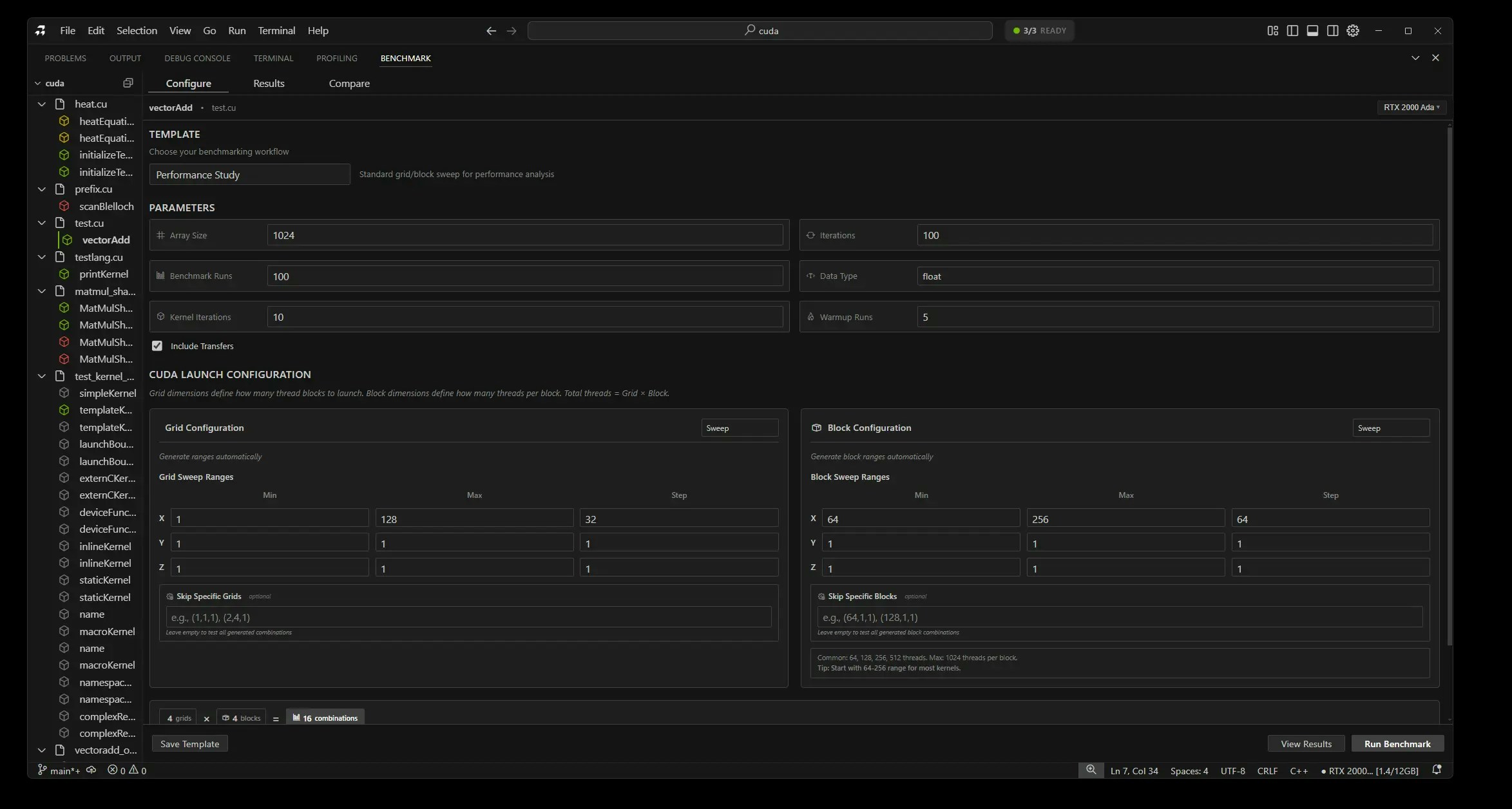 ### Configuration View
Set your benchmark parameters:
* **Iterations**: Number of times to run (e.g., 100)
* **Warmup Runs**: Initial runs to stabilize GPU (e.g., 10)
* **Data Sizes**: Small, medium, large test configurations
### Running Benchmark
1. Configure your settings
2. Click "Run Benchmark" button
3. Watch progress bar as results stream in
4. See live metrics updating
### During Execution
### Configuration View
Set your benchmark parameters:
* **Iterations**: Number of times to run (e.g., 100)
* **Warmup Runs**: Initial runs to stabilize GPU (e.g., 10)
* **Data Sizes**: Small, medium, large test configurations
### Running Benchmark
1. Configure your settings
2. Click "Run Benchmark" button
3. Watch progress bar as results stream in
4. See live metrics updating
### During Execution
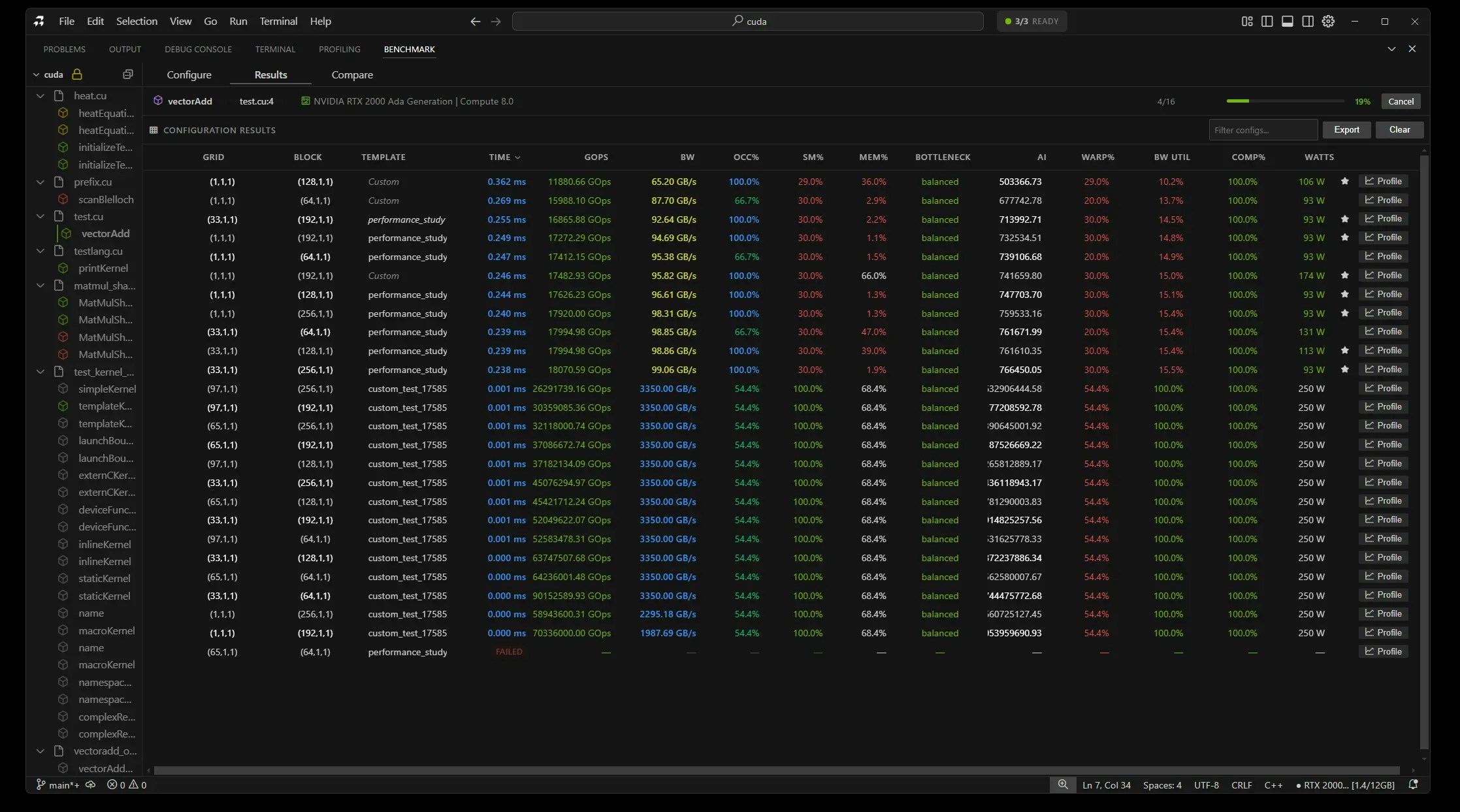 * Progress indicator shows completion percentage
* Results appear in real-time
* Current iteration displayed
* Stop button available to cancel
## What You See
### Live Results
* **Running**: Shows current iteration (e.g., "Running 45/100")
* **Time Graph**: Real-time performance visualization
* **Statistics**: Live mean, min, max updates
### Final Results
* **Execution Time**: Average kernel runtime
* **Statistical Analysis**: Mean, median, standard deviation
* **Performance Metrics**: Throughput, efficiency
* **Export Button**: Save results
## Comparing Kernels
* Progress indicator shows completion percentage
* Results appear in real-time
* Current iteration displayed
* Stop button available to cancel
## What You See
### Live Results
* **Running**: Shows current iteration (e.g., "Running 45/100")
* **Time Graph**: Real-time performance visualization
* **Statistics**: Live mean, min, max updates
### Final Results
* **Execution Time**: Average kernel runtime
* **Statistical Analysis**: Mean, median, standard deviation
* **Performance Metrics**: Throughput, efficiency
* **Export Button**: Save results
## Comparing Kernels
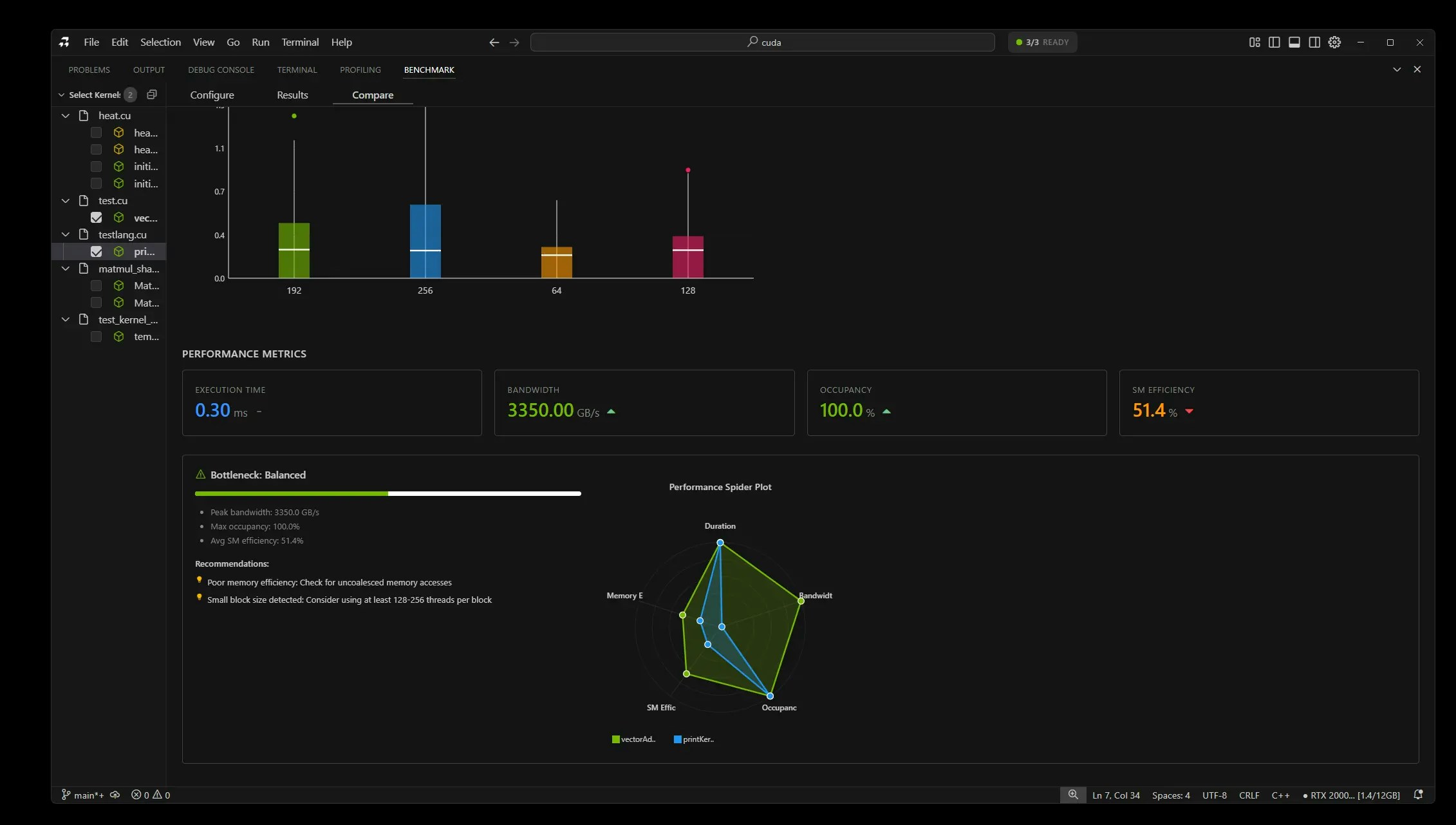 1. Benchmark your original kernel
2. Benchmark your optimized version
3. Click "Compare" button
4. View comparison:
* **Side-by-side metrics**
* **Speedup percentage** (e.g., "2.3x faster")
* **Winner highlighted** in green
## Tips
**Best Practices**
* Use at least 100 iterations for accuracy
* Always include warmup runs
* Keep data sizes consistent for comparison
* Benchmark before and after optimization
**Important**
* Close other GPU applications for accurate results
* Let GPU stabilize between tests
* Use same configuration when comparing kernels
## Screenshots Needed
1. **Benchmark configuration view** - Shows settings panel
2. **Benchmark running** - Progress bar and live results
3. **Kernel comparison** - Side-by-side performance metrics
## Next Steps
* [GPU Emulation](/gpu-emulation) - Test on different GPUs
* [Remote GPU Execution](/remote-gpu-execution) - Benchmark on cloud GPUs
* [Core Features](/core-features) - AI optimization suggestions
1. Benchmark your original kernel
2. Benchmark your optimized version
3. Click "Compare" button
4. View comparison:
* **Side-by-side metrics**
* **Speedup percentage** (e.g., "2.3x faster")
* **Winner highlighted** in green
## Tips
**Best Practices**
* Use at least 100 iterations for accuracy
* Always include warmup runs
* Keep data sizes consistent for comparison
* Benchmark before and after optimization
**Important**
* Close other GPU applications for accurate results
* Let GPU stabilize between tests
* Use same configuration when comparing kernels
## Screenshots Needed
1. **Benchmark configuration view** - Shows settings panel
2. **Benchmark running** - Progress bar and live results
3. **Kernel comparison** - Side-by-side performance metrics
## Next Steps
* [GPU Emulation](/gpu-emulation) - Test on different GPUs
* [Remote GPU Execution](/remote-gpu-execution) - Benchmark on cloud GPUs
* [Core Features](/core-features) - AI optimization suggestions